In order to finish setting up TechnoMile's forecasting module, there are a few items that need to be configured locally in the org:
Permission Set
Page Layouts
Configure Permission Set
In this series of steps, you'll add certain permissions that cannot be packaged due to the Salesforce constraint involving master-detail relationships with Standard Objects.
Go to Setup -> Permission Sets
Find the 'TM Forecasting' permission set
Click 'Edit'
Go to Object Settings
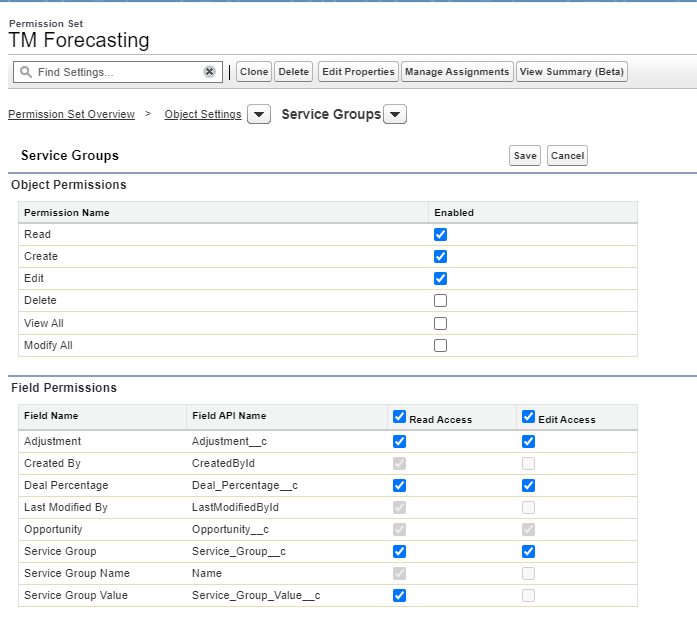
There are two objects you will need to enable permissions for: Service Groups, Opportunity AttributesFirst, select Service Groups (API Name is TM_Service_Group__c)
Give access to this object and its fields to match the picture below:
Click 'Save'
Next, do the same for Opportunity Attributes (API Name is TM_Opportunity_Attribute__c)
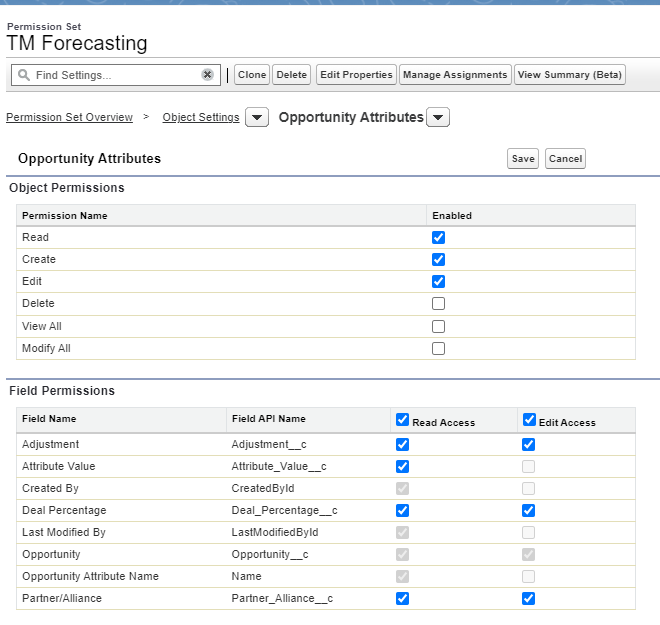
Assign this permission set to any user who needs access to the forecasting module, or add it to existing Permission Set Groups
Configure Page Layouts
Since the forecasting module is in a separate package, the related lists will not automatically appear on the packaged Growth page layouts.
Opportunity Page Layout
Go to setup -> Object Manager -> Opportunity -> Page Layouts
Find the assigned page layout you need to modify (Standard Growth out of the box is 'Growth OOB - Regular')
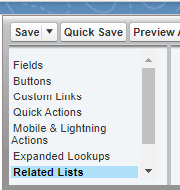
Next, select 'Related Lists'
Click and drag 'Service Groups' and 'Opportunity Attributes' on to the page layout
Configure the fields for each object by clicking the wrench icon on the Related List
Service Group Fields to display:
Service Group Name, Service Group, Service Group Value, AdjustmentOpportunity Attribute fields to display:
Opportunity Attribute Name, Partner/Alliance, Attribute Value, AdjustmentSave the page layout
Account Page Layout
This step may have extra steps to add a button to a page layout depending on whether your organization is utilizing 'Dynamic Actions.' Those additional steps will be called out after the initial steps below.
Go into Setup -> Object Manager -> Account -> Page Layouts
Find your assigned page layout that you are trying to add the 'Wedge Opportunity' button to
For Growth OOB Customers, this is typically just the 'Growth OOB - Government' pageIn the top left of the page layout, select 'Mobile & Lightning Actions'
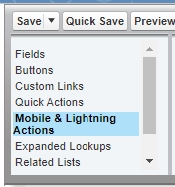
Next, click and drag the 'Create Wedge Opportunity' button down into the 'Salesforce Mobile and Lightning Experience Actions' section
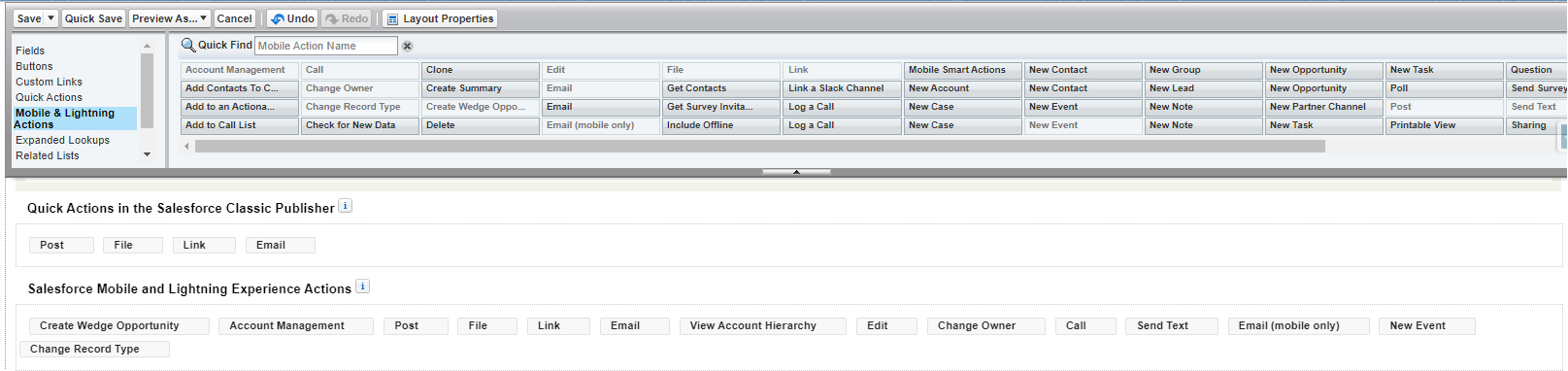
Save the page layout