Overview
Task Order Management is a managed package application that enables its users to identify and qualify the most important Opportunities in a Government Contractor’s pipeline. The application enables real-time automated imports and notifications from Contract Vehicles. Users can identify and assess engagement rates and perform Bid/NO Bid decisions.
Task Order Management is designed around the concept of a centralized Opportunity Management portal, in which users can leverage Teaming Partner recommendations, automated Partner reporting, and Partner workflows.
Task Order Management provides Government Contractors with a comprehensive Capture Management System on the highly-flexible and scalable Microsoft Dynamics Platform. The application provides Capture and ID/IQ Managers with tools they need to manage Task Order requests and optimize Teaming Partner collaboration.
Audience
Task Order Management Users
Benefits & Features
With Task Order Management, you can rapidly gauge potential Partner capabilities and interest to form smart Teaming strategies.
Initiate a configurable Partner Survey from this solution and aggregate all responses into a single view, making it easy to compare responses, identify the best Partners, and potentially expand the range of Opportunities you can pursue.
Easily stay on top of all potential new Task Order Opportunities and mitigate risks of missed Task Orders as it integrates with 25+ top ID/IQ Contract Vehicle portals, eliminating the pain of visiting individual sites to find new Task Orders.
Task Order Management also centralizes all of your organization’s Task Order related emails and extracts their contents into your CRM, so individual team members no longer face an inbox full of Task Order alerts.
All ingested new Task Orders are presented in a single list view, which can be filtered and sorted by Contract type, Vehicle name, Agency, etc. making it simple to rapidly identify relevant Task Orders. To further streamline qualification, our solution can be configured to only ingest those Task Orders with desired NAICS Codes or other such criteria.
When your team identifies a relevant Task Order to pursue, they can quickly convert it into a new Opportunity in our integrated Capture Management solution, which adds all related documents to the Opportunity Record.
Configurable Reports and dashboards provide easy visibility and insights into Task Orders you are pursuing, including who is managing their capture, their current status, where you are winning or losing, their related Competitors and Partners, etc.
Contract Vehicles
Contract Vehicle Record Page
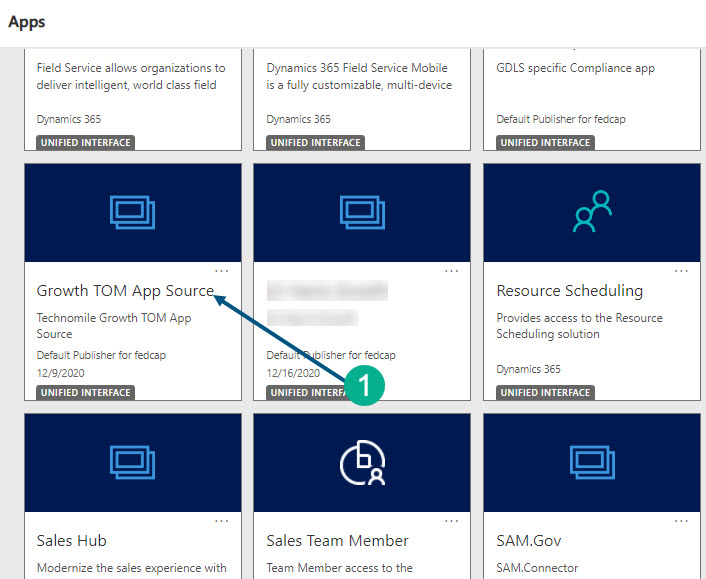
Login to your Microsoft Dynamics instance and click Growth TOM App Source.
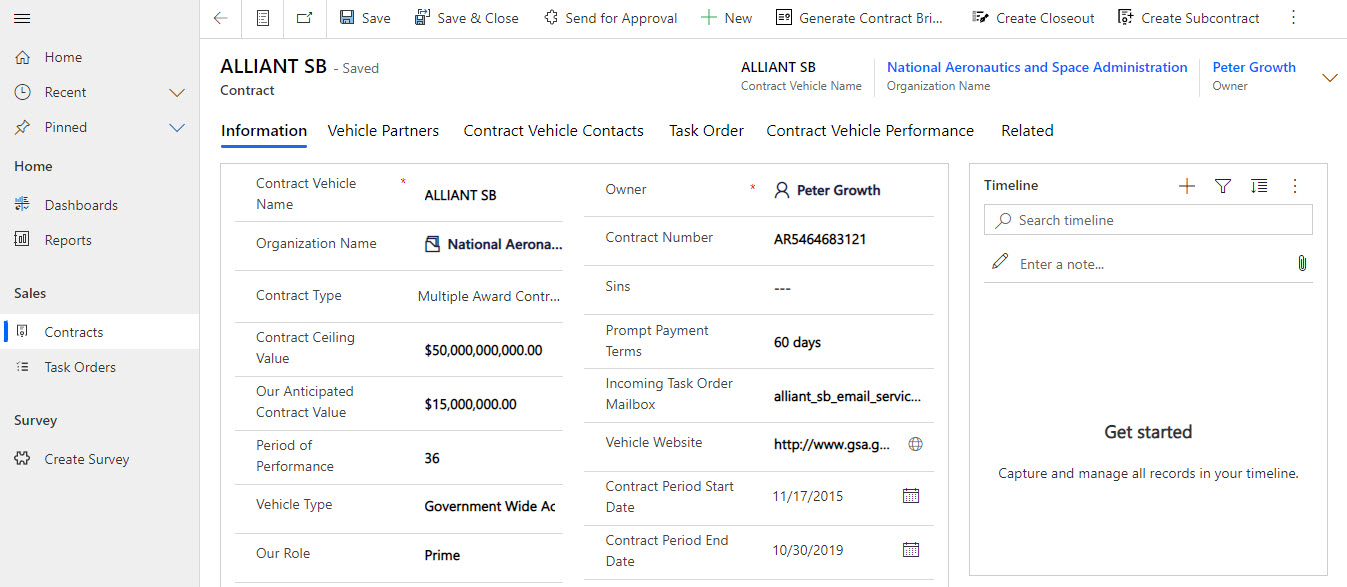
Go to Contracts and click to open a Contract Record.
 Contract record page opens that displays all the information pertaining to a Contract Vehicle.
View Contract Vehicle Performance Chart
Go to Contract Vehicle Performance.
Here, you can view a chart that displays the performance of a Contract Vehicle.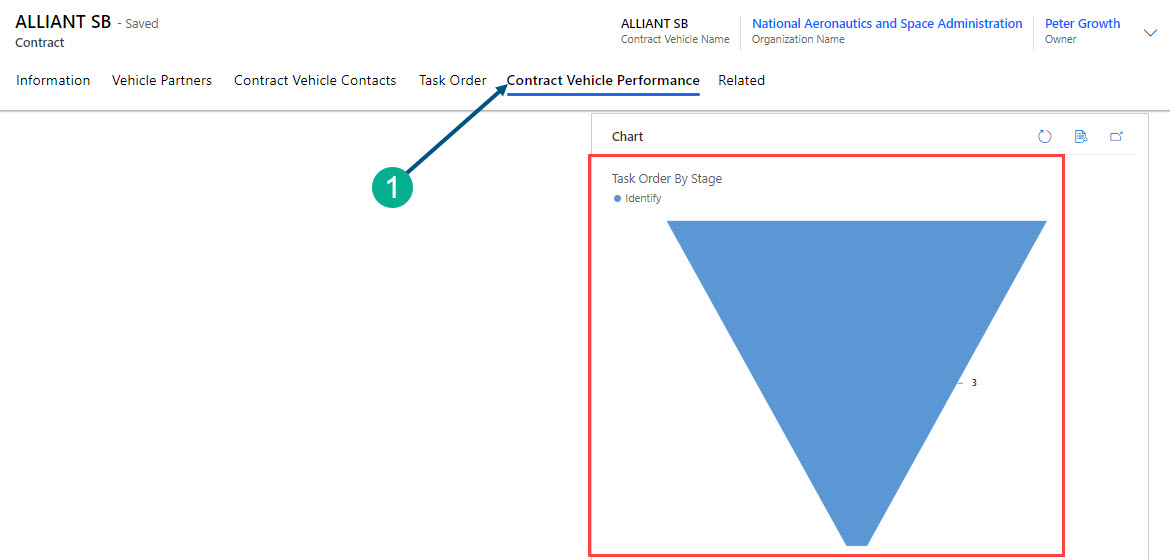
Add Vehicle Partners & Contacts
Go to Vehicle Partners and click Add Vehicle Partners.
All the Vehicle Partners associated with a Contract Vehicle display here.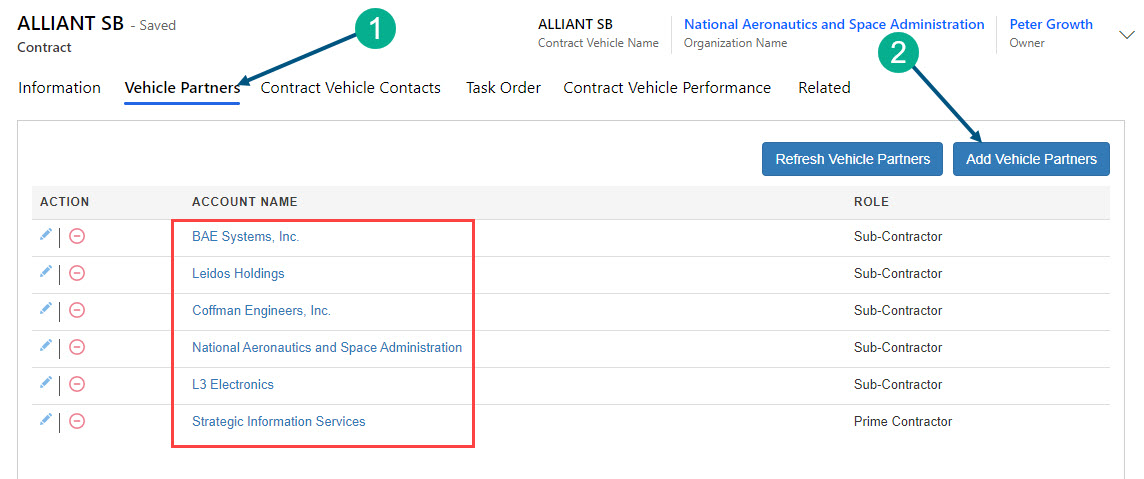
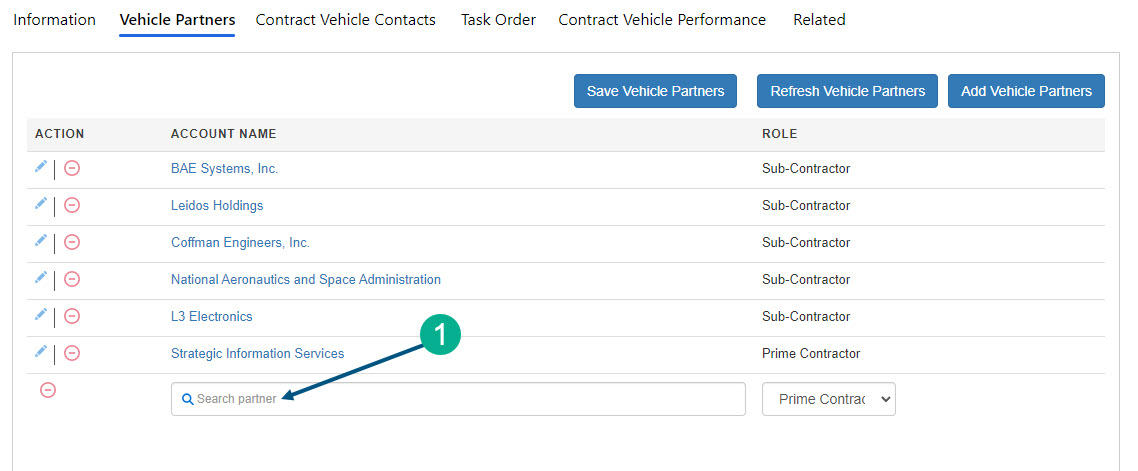
Click inside the Search partner bar.
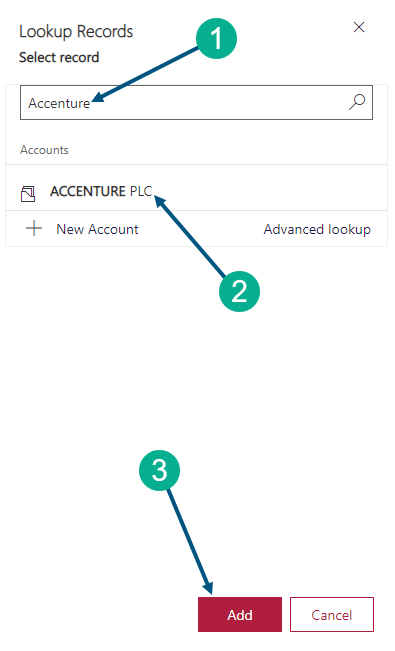
Search for an Account record, click an Account name in search results, and then click Add.
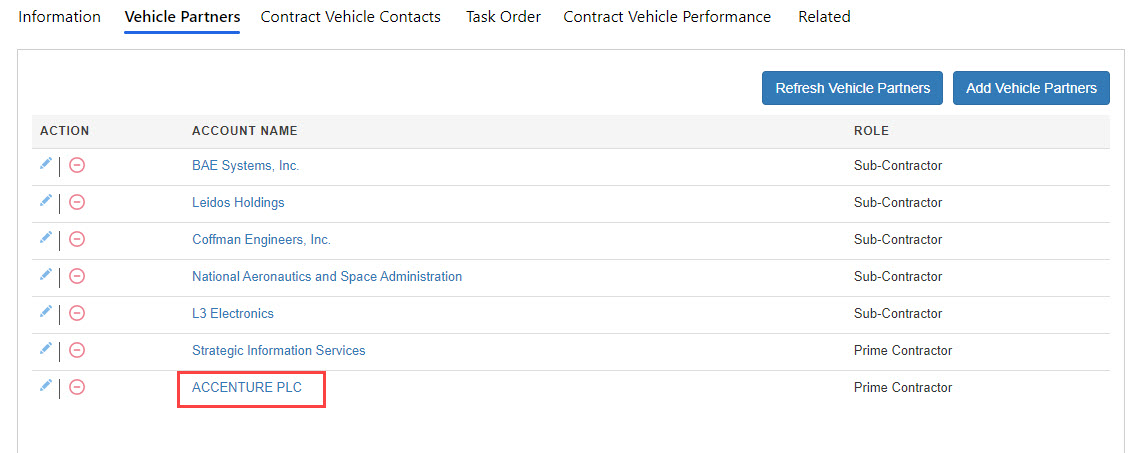
Click Save Vehicle Partners.
 Vehicle Partner is added.
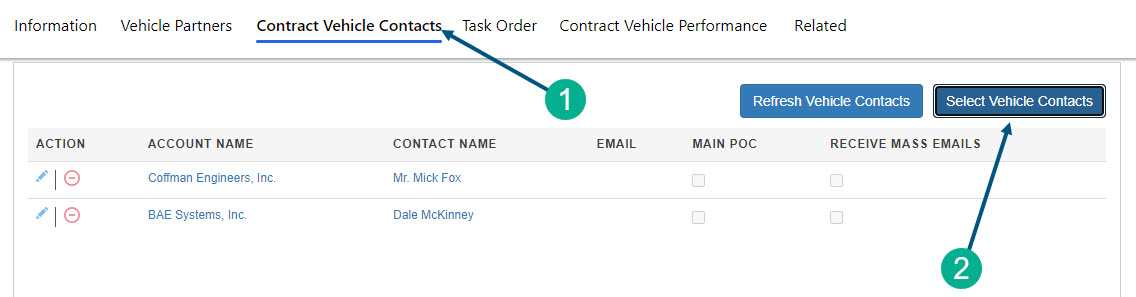
Go to Contract Vehicle Contacts and click Select Vehicle Contacts.
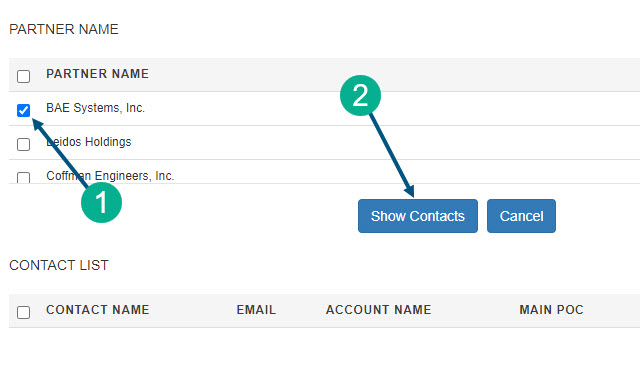
Select a Partner Name and click Show Contacts.
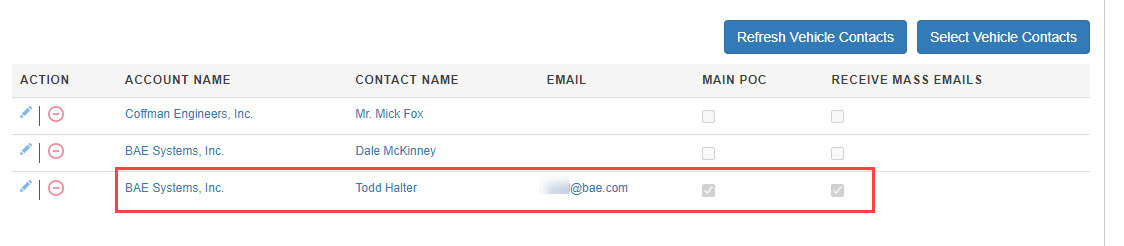
Select a Contact Name, select the Main POC and/or Receives Mass Emails checkbox, and click Add Contract Vehicle Contacts.
 Contract Vehicle Contact is added.
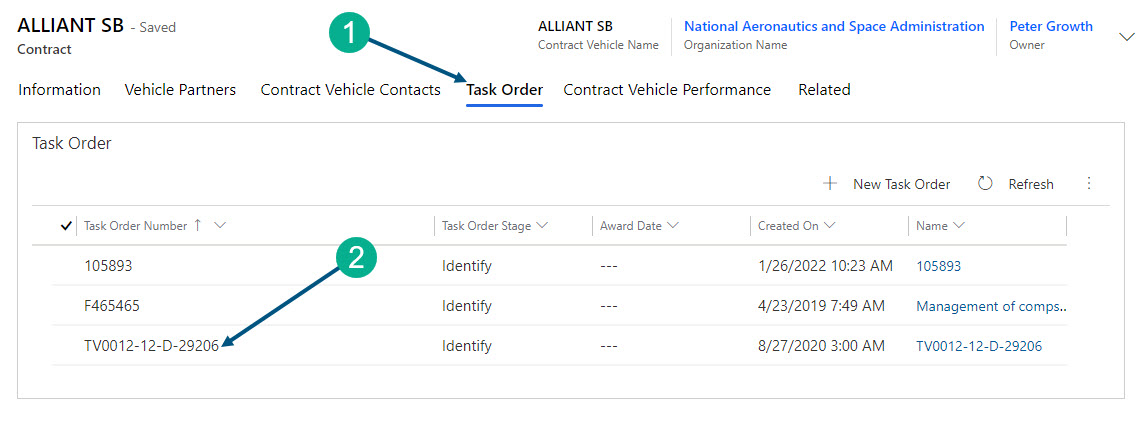
Go to Task Order.
All the Task Orders associated with a Contract Vehicle display here.Click to open a Task Order record.
Add Teaming Partners & Send Questionnaire
Go to Teaming Partner and click Select Teaming Partner.
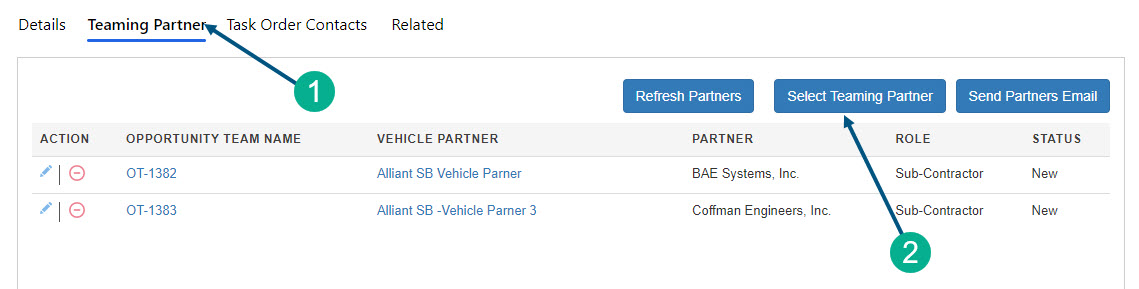
Vehicle Partners that were added to Contract Vehicle earlier display, select Partner Name(s) and click Add Teaming Partner.
NOTE
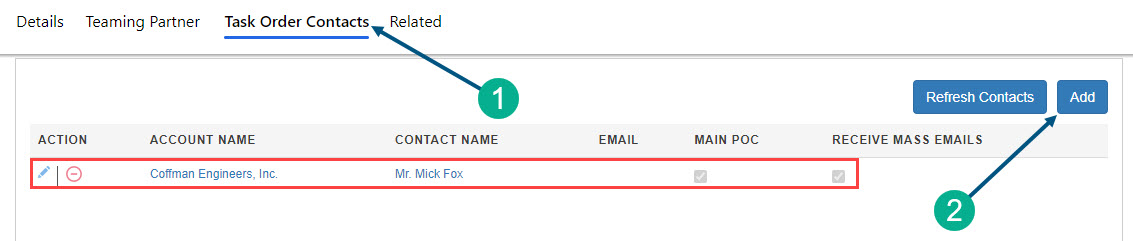
All the Contract Vehicle Contacts that were added to Contract Vehicle earlier are automatically added as Task Order Contacts on the Task Order Contacts tab.
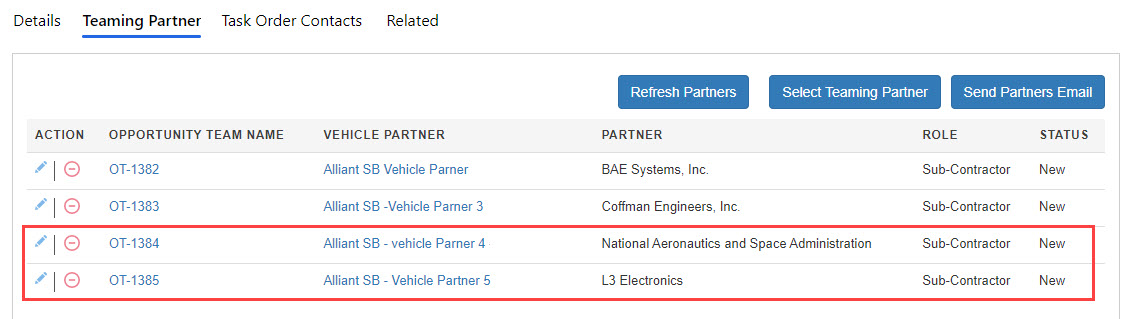
 Teaming Partners are added.
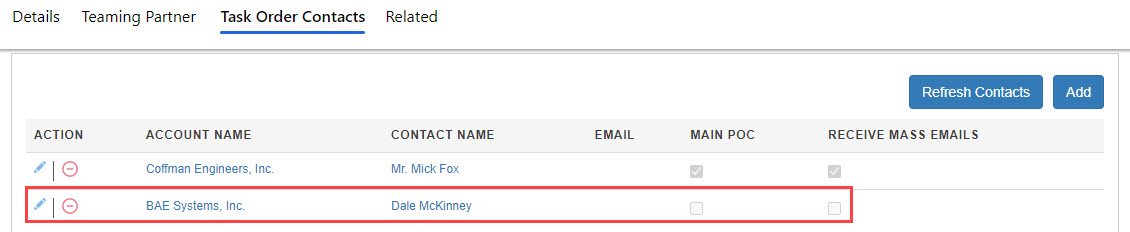
Go to Task Order Contacts and click Add.
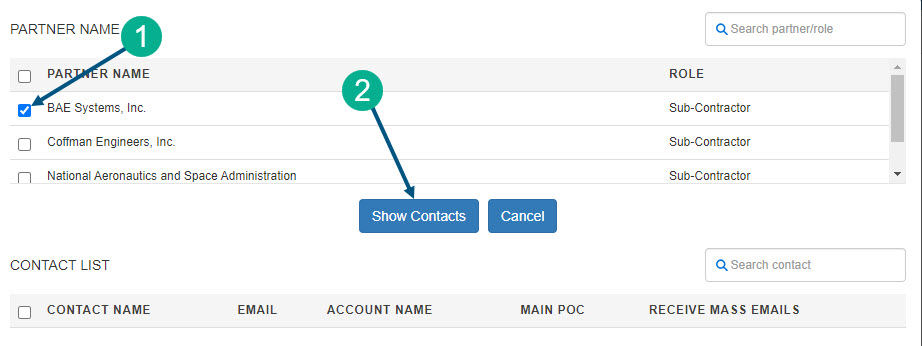
Select a Partner Name and click Show Contacts.
Select Contact Name(s) and click Add Task Order Contacts.
 Task Order Contact is added.
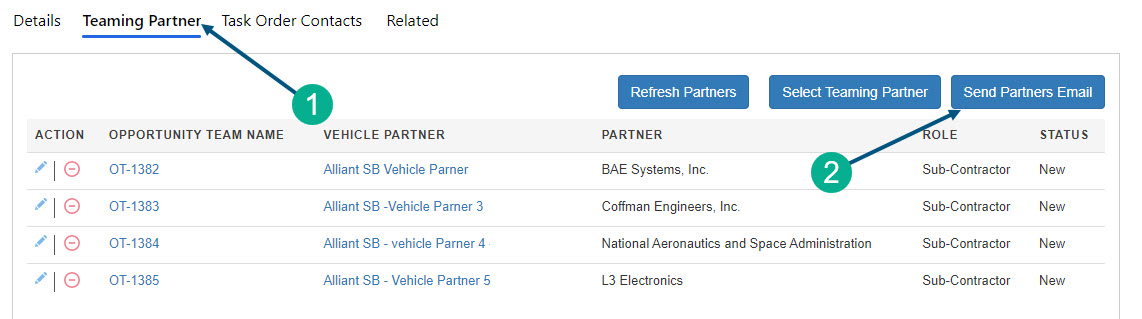
Go back to Teaming Partner and click Send Partners Email.
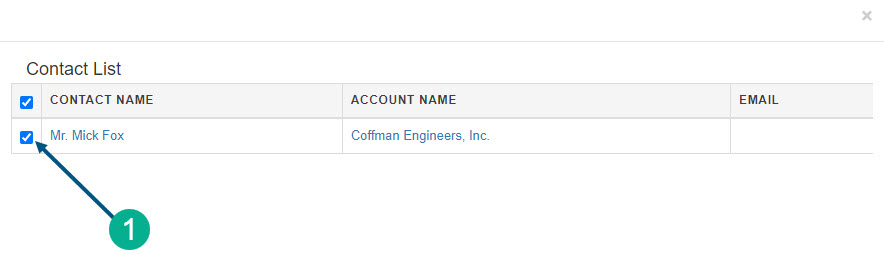
Select a Contact Name to whom you want to send this Questionnaire.
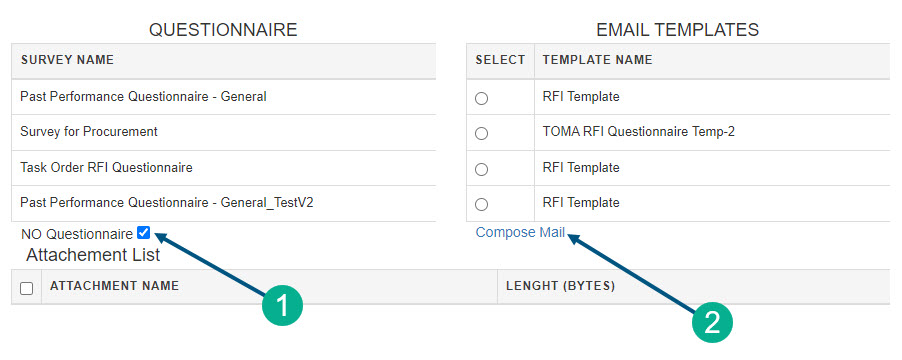
Choose a Survey Name and Template Name and click Send Email. Note that list of Email Templates available here, changes as per your Questionnaire/Survey Name selection.
 Alternatively, you can also select the NO Questionnaire checkbox and then click Compose Mail to compose your own Survey email. You can then enter the Subject and Description of the email and click Send Email to send this Survey to your selected Contact(s).
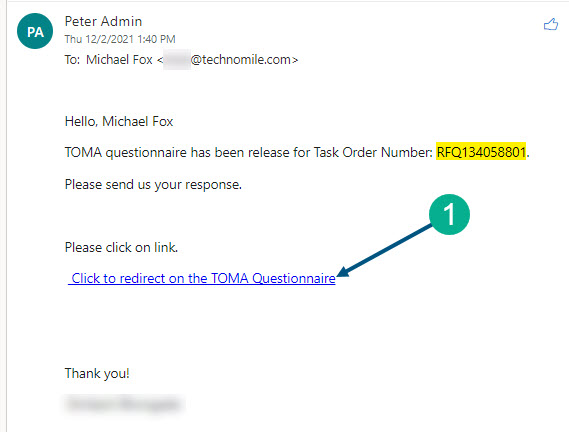
 Email is sent to the selected Contact(s), along with a link to the Questionnaire.
Access & Submit Questionnaire
Click the Questionnaire link received in your email.
Enter your response to all Questions and click Submit Survey.
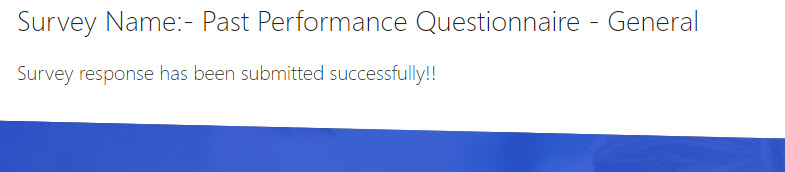
 Survey response has been submitted successfully!!! message displays.
View Questionnaire Details
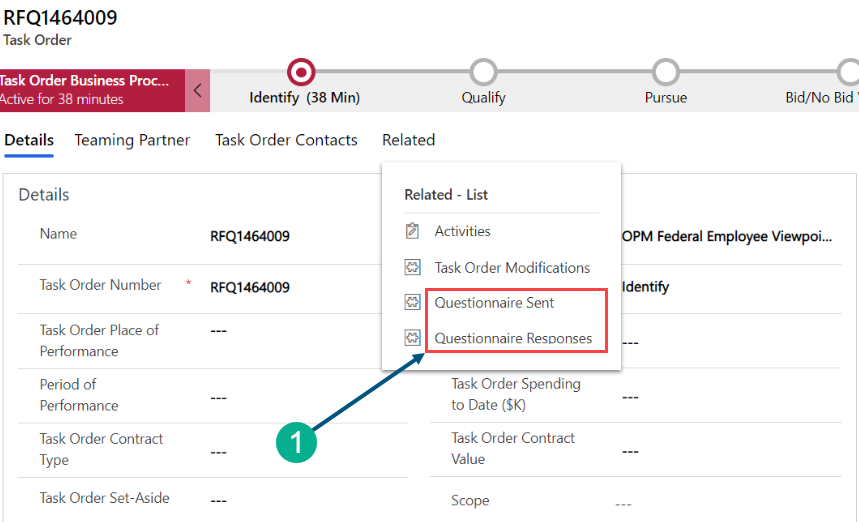
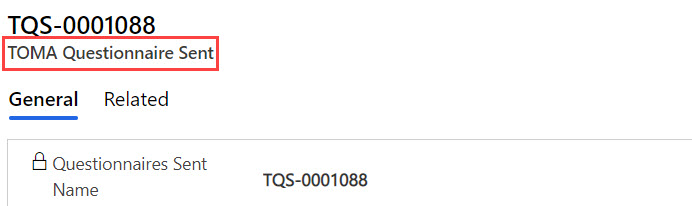
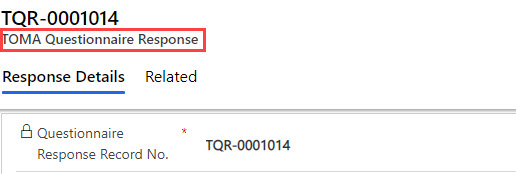
Click Questionnaire Sent and Questionnaire Responses in the Related List of a Task Order record to view the Survey(s) sent to Task Order Contacts and their Responses, respectively.
Task Orders
Create Task Order
Go back to Task Orders and click to open a Task Order record.
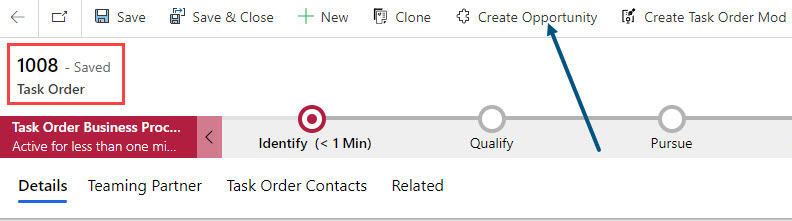
 Task Order record page opens. Here, you can add more information about a Task Order by entering data into other fields, if required. You can also view the Stage of a Task Order on the Task Order Business Process Flow (BPF).
NOTE
If a Task Order is attached to a Contract Vehicle that is associated with SharePoint, then the SharePoint Files tab is enabled/becomes visible that contains a link to all the files associated with this Contract Vehicle on SharePoint.
 You can click the globe icon to go to the files location on SharePoint.

Click New.

Enter details such as Task Order Number, Task Order Title, Stage, Contract Vehicle Name, etc. and click Save.
NOTE
Fields marked by the red asterisk* sign are mandatory.
 Task Order is created.
You can also click Create Opportunity to create an Opportunity from this Task Order record.