Overview
TechnoMile’s Global Calendar enables you to color-code various Event Types such as Call, Email, Meeting, etc. for objects in Salesforce.
This document is a step-by-step guide on how you can customize the Global Calendar feature for objects in your organization.
Audience
Salesforce Administrators
IT Support
Prerequisites
Ensure that Growth Module - TechnoMile Suite Sales Cloud Edition has already been installed and configured. The version of this package must be 7.16 or higher.
Steps for Configuration
Configure Profile Settings
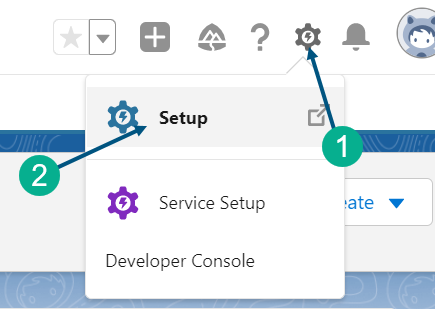
Click the gear icon and select Setup.
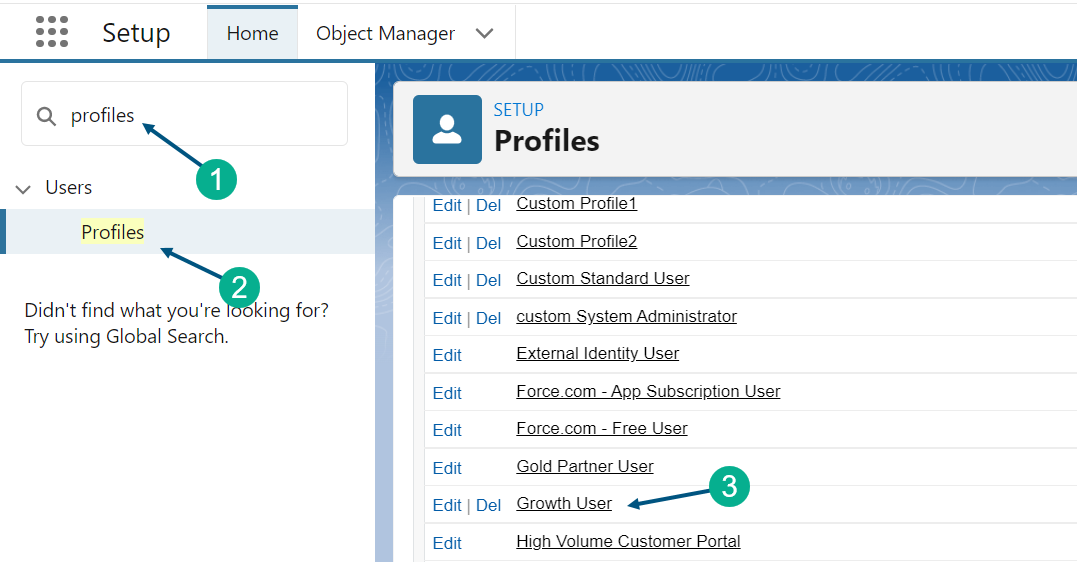
Enter text Profiles in the search bar and click Profiles.
Click to open a Profile that you wish to provide Global Calendar access to.
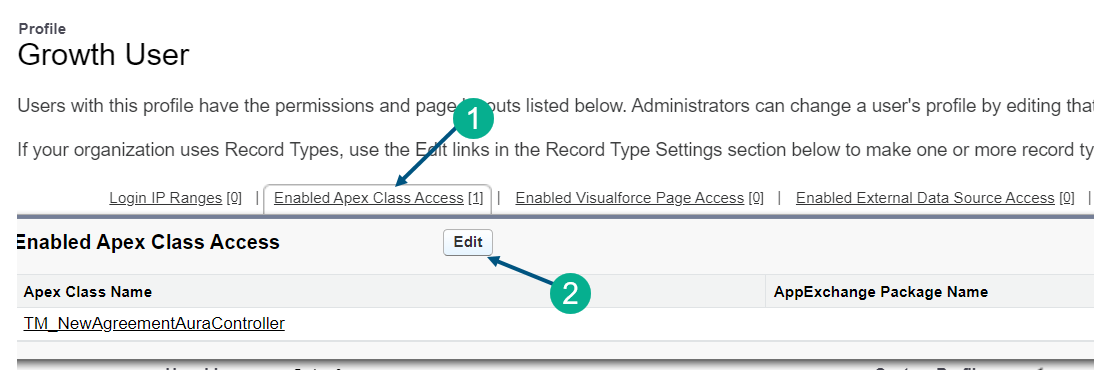
Enable Apex Class Access
Click Enabled Apex Class Access and then click Edit.
Select and move the following five Apex Classes from Available Apex Classes to Enabled Apex Classes using the Add arrow button and click Save.
 Enable Visualforce Page Access
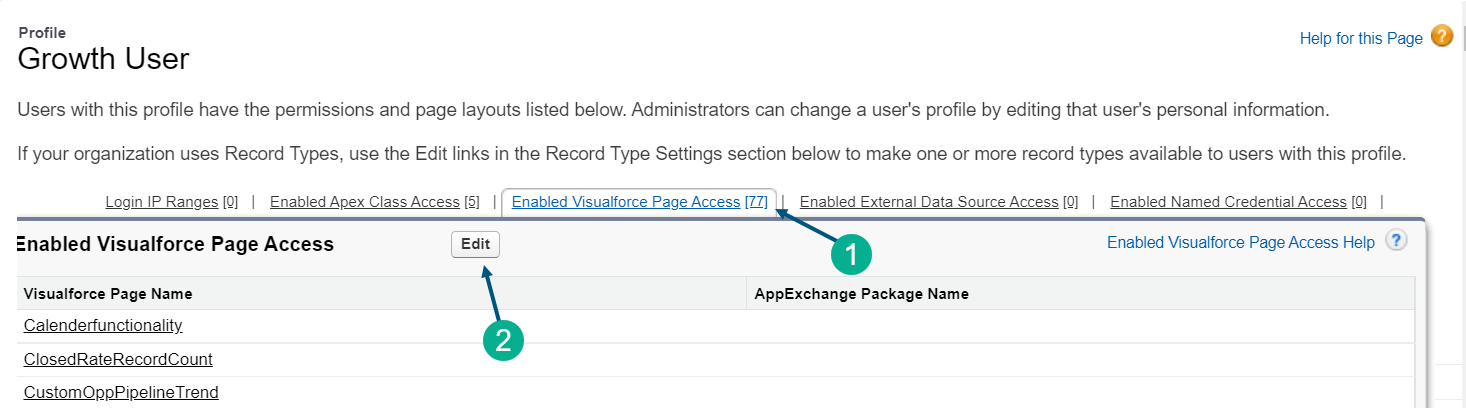
Click Enabled Visualforce Page Access and then click Edit.
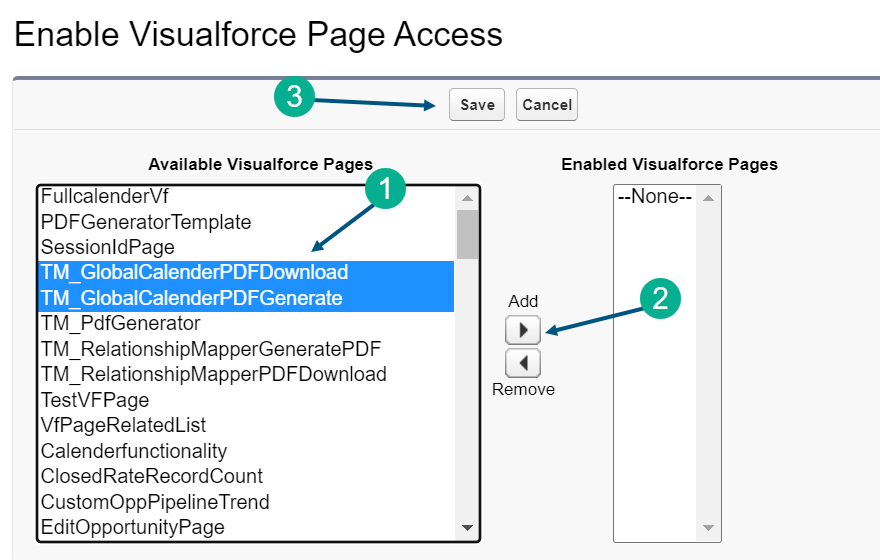
Select and move the following two Visualforce Pages from Available Visualforce Pages to Enabled Visualforce Pages using the Add arrow button and click Save.
Customize Tab Settings
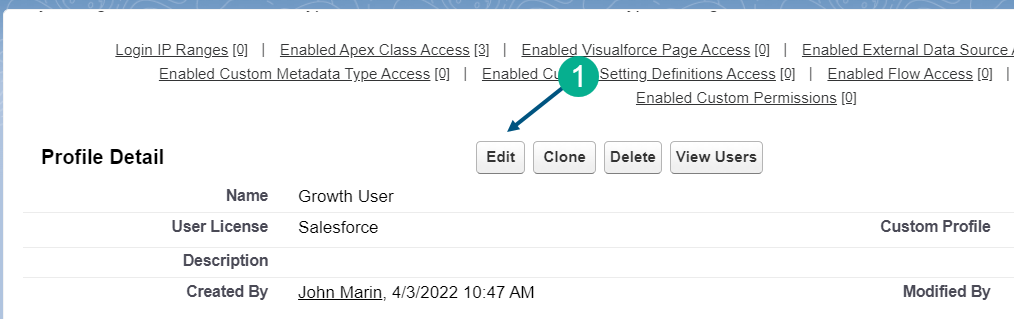
Click Edit.
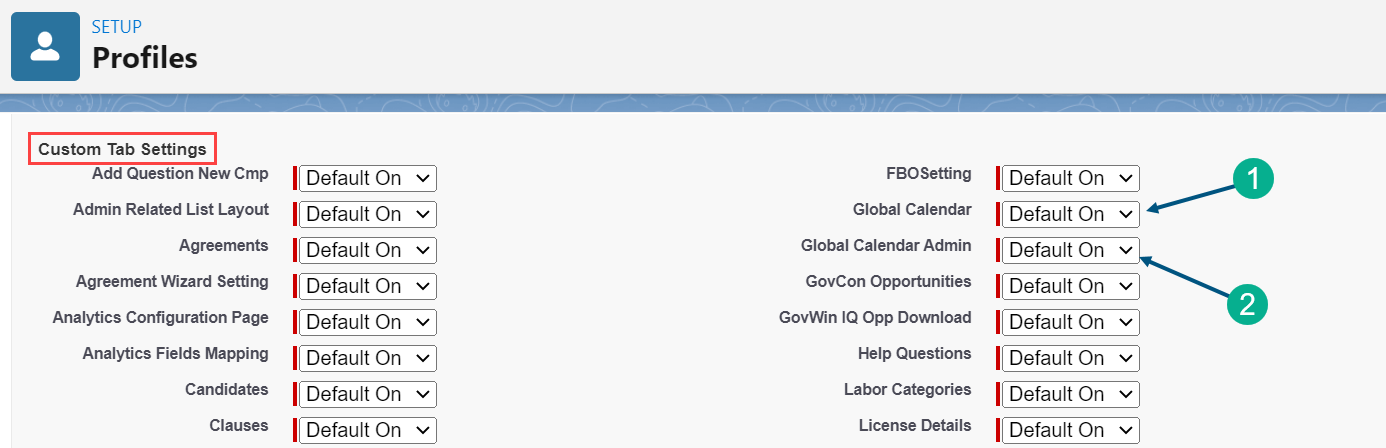
Scroll down to Custom Tab Settings and select Global Calendar and Global Calendar Admin as Default On.
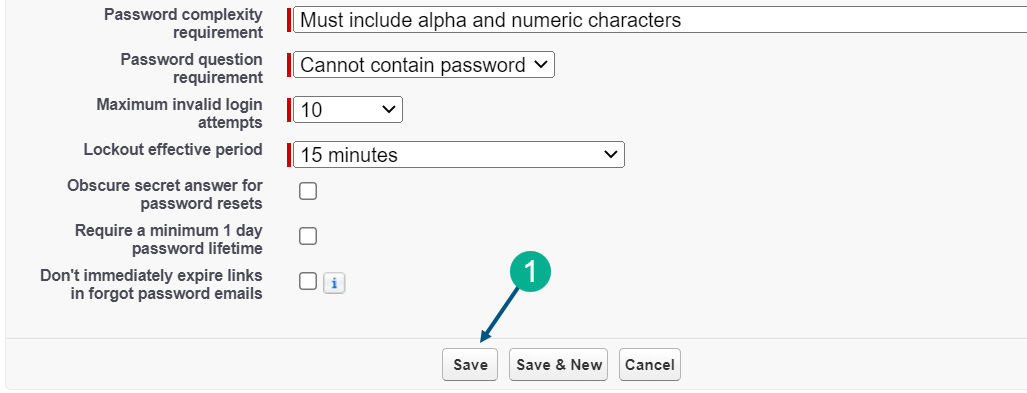
Click Save.
Configure Global Calendar Admin
Add Object to Global Calendar
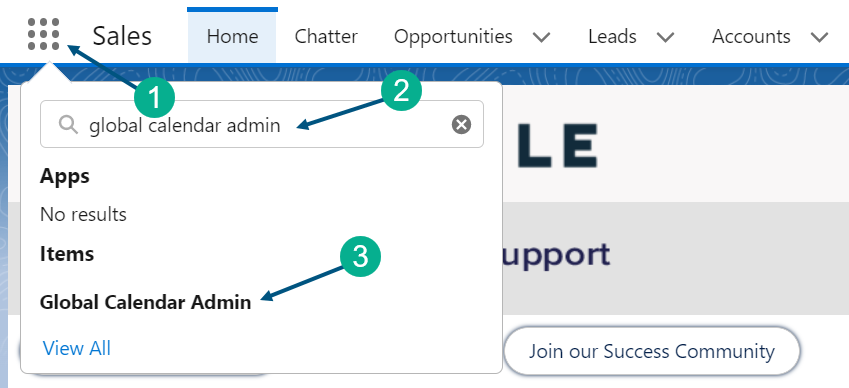
Open App Launcher, enter text global calendar admin in the search bar, and click Global Calendar Admin in search results.
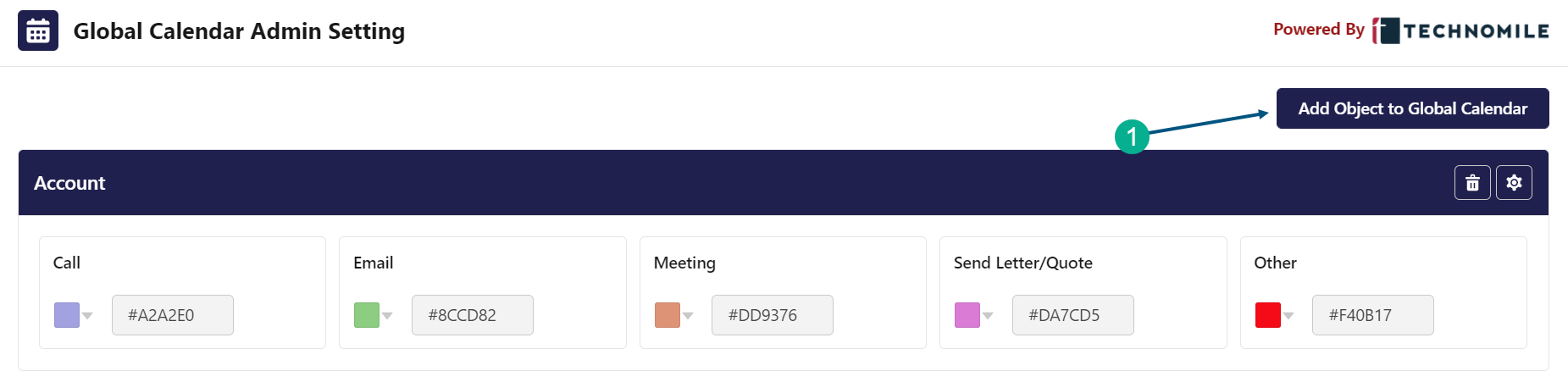
Click Add Object to Global Calendar.
Select an Object, set a Color for an Event Type, and click Done.
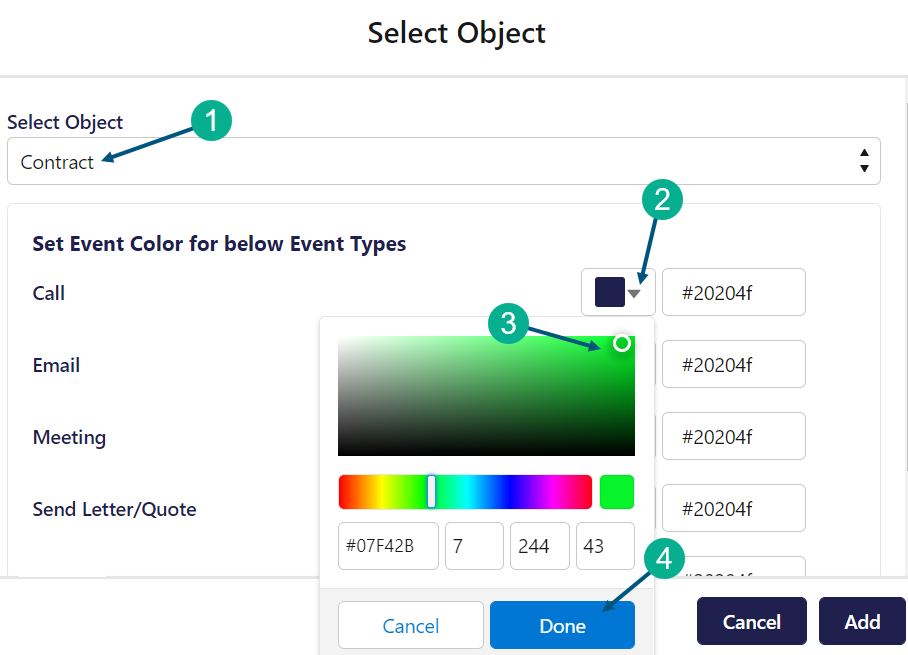
Similarly, you can set Colors for all other Event Types and click Add.
 Contract object with its color-coded Event Types as specified by you, is added to Global Calendar.

Edit Object in Global Calendar
Click the Update icon, set another Color for an Event Type, and click Update.

 Object is updated in Global Calendar.

Delete Object from Global Calendar
Click the Delete icon.

A confirmation message displays, click OK.
 Object is deleted from Global Calendar.